Showing posts with label Tips. Show all posts

Sunday, April 10, 2016

Create Your Own . . . Clip Art

Copyright issues sometimes plague genealogists and the family historian. This is especially true if we plan to publish our stories and research findings. Who owns the copyright for an image? When does an image belong in the public domain? Just because you own a photograph of your ancestor, does that mean you own the copyright to that image? The purpose of this post is not to address those issues. Instead, I refer you to Judy Russell's blog, The Legal Genealogist. She's the expert in topics relating to copyright and genealogy.

Instead, I want to provide some ideas for creating your own images for which you will own the copyright. Since most of us carry a smartphone all of the time, or have some kind of a point-and-shoot digital camera, creating your own images becomes pretty simple. You have to think Image. Think Graphic. Think Composition.

In college, I studied both photojournalism and art photography and have been an amateur photographer ever since. When I lived at home, my Dad even built me my own darkroom in our basement. I don't miss the smell of those chemicals contained in a small space and I'm so glad we have moved into a digital world. But ever since I was a youngster, I've seen my world inside of framed images. I'm always thinking, "how I can best compose a photograph of this subject?" Most of the time, I have a digital camera with me, but I ALWAYS have my iPhone to capture those spur of the moment shots.

I enjoy traveling, sightseeing, visiting museums and historical landmarks. Not only do I try to capture the typical "tourist" photos, I also have an eye toward what will make an interesting photograph to enhance a blog post, article or other published piece I might write about my ancestors. Over the years, I've created a fairly extensive library of photographs that I can enhance through photo editing software or apps. I can use them freely because I own the copyright since I took the photographs.

Everywhere you go, always think "Clip Art Library" and before long, you will have your own source of images for blog posts, articles, and family history books. Once you begin accumulating your images, you will need to organize them within folders on your computer and perhaps tag them with subject matter such as pioneers, flags, prairie, homestead, etc.

The following are a few of the images that I've captured in recent years. I hope they will inspire you to begin your own clip art library of images for which you own the rights and can use freely.

This one isn't all that exciting, but we are always writing
about libraries, archives and research.
So add a few shots that you've taken while visiting a library.
This is the cabin on the grounds of Homestead National Monument.
I've used variations of this which I've created in photo apps to make it look like a sketch,
a pencil drawing or a sepia print. I've used this one a lot!

Here's an example of a pretty boring photograph of one of the displays at the Leonardo DaVinci
exhibit that I shot at Union Station in Kansas City last month.
See the next photo for an example of how to make your photos go from ordinary to extraordinary.
This photo is composed with much more interest, focusing on the work table.
Same space, different perspective.

What might have been in the covered wagons our ancestors drove
as they moved westward in the 1860s? Here's an example I discovered at
the Pony Express Museum in St. Joseph, Missouri.

I haven't used this image yet, but can't we always use a reference to a compass?
Photo taken at the Lewis and Clark Center near Nebraska City, Nebraska.


I've used this image when writing about my Irish immigrant ancestors.
Photo taken at the Kansas City Irish Center when it was located at Union Station.

I took this photo yesterday at the Durham Museum in Omaha.
It was formerly the Omaha Union Station.
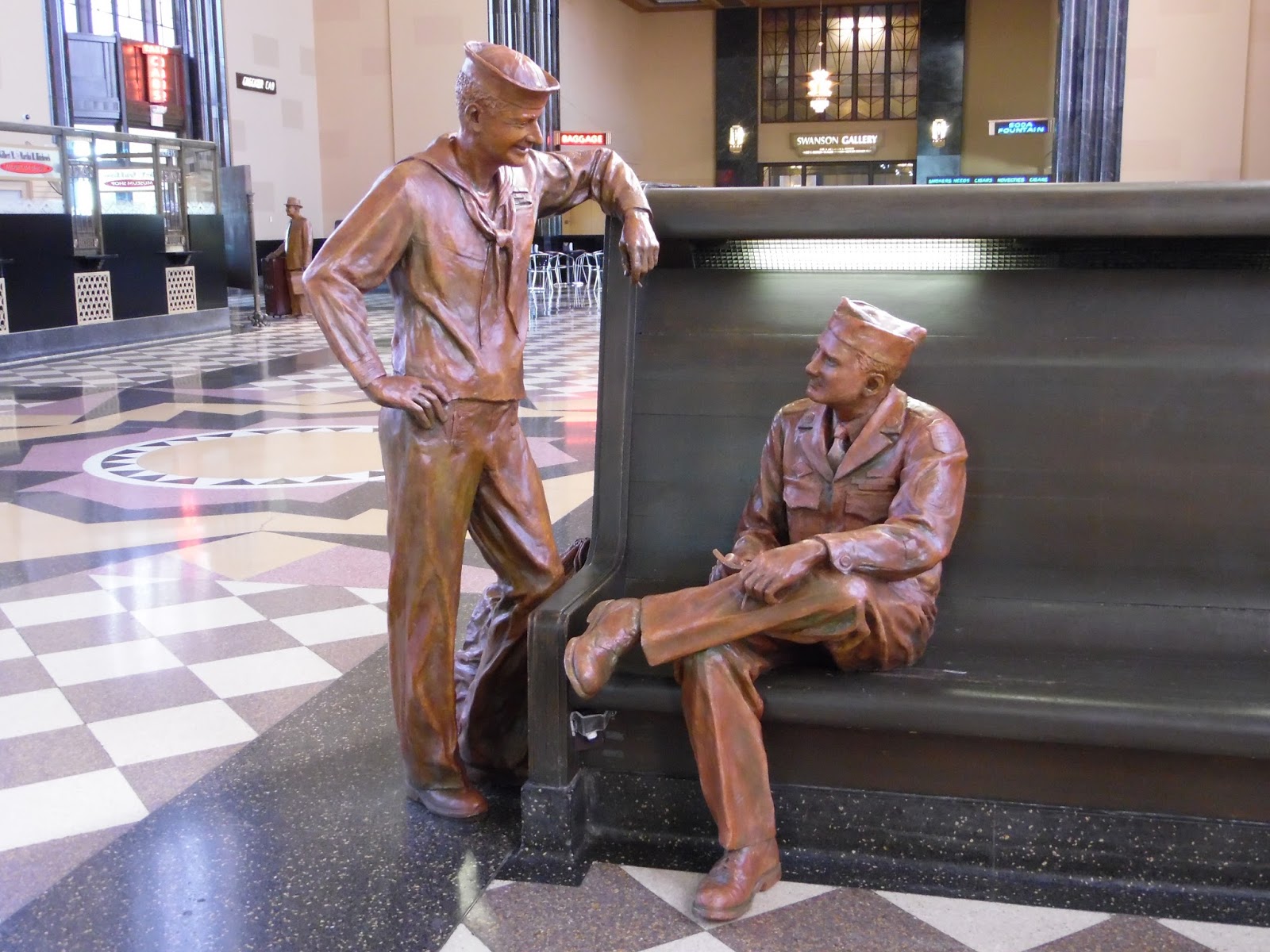
Sometime when I'm writing about my family members who served
in World War II, this is an image I can use.

Here's another example of a not very interesting straight-on shot.
See below for better composition.

This view is more interesting and I can use the
space on the right to add some typography, a quote or meme.

Example of a One Room School - establishing shot.
Durham Museum - Omaha

Then go for the special interest shot.
Durham Museum - Omaha

Wyuka Cemetery - Lincoln, Nebraska
This is one of my favorite views at Wyuka.
And here's how I turned that image into a sketch using an iPhone app.


My Mother's Hand
This is a recently discovered photo that I took of my Mom's hand with a family
Bible and some ancestor's glasses (no idea who!).
This was among a huge collection of negatives of photos I took while in college.
What a treasure for me to find this one!

With some simple apps, you can convert old images into interesting graphics.

Having fun with ancestor photos.
With photo apps, you can create collages and memes.

This is an old photo scanned from a negative.
It could still use some enhancing in Photoshop Elements.
Arthur Cemetery, Arthur, Nebraska.

Boot Hill Cemetery, Ogallala, Nebraska
I thought this view was much more interesting
than shooting from the other direction.
I've actually reversed it for a project so that it doesn't read backwards.
I'm a flag geek. I always take photos of flags flying at the sites I visit.
This is at the Museum of Danish America in Elk Horn, Iowa.
These are just a few examples of keeping your eyes open for Photo Ops. With digital photography, we are no longer restricted to 36 images per roll of film. Shoot photos to your heart's content. Even now, with no restrictions, I still feel as though I never take enough photos! Although, my Facebook friends and followers on Instagram may argue with me on that!

Here's a few more tips:
  • Take an establishing shot. Get the big picture. This is especially true when photographing cemeteries. Don't just take the photo of your ancestor's headstone. Get a wider view of the entire plot and area.
  • Take a photo of identification information. If it's a museum or gallery, take a photo of the sign that shows the hours of operation. Always take pictures of the historical marker that describes the site you are visiting. You may not end up using these in your project, but it's a good point of reference.
  • Take shots from several angles. Get your establishing shot, then shoot from the right, shoot from the left, zoom in. Look for interesting patterns, shadows and light. With digital, you can afford to take as many photos as you want.
  • Experiment with portrait and landscape and square. Use what suits your purpose. Since becoming hooked on Instagram, I shoot a lot of square photos (even though Instagram now allows other formats). You're not going to be shooting the inside dome of a state capitol building using landscape! If you are photographing art or exhibits in a museum, get a photo of the sidebar description of the piece. Again, that is for your reference, not necessarily something you will publish. It's akin to "citing your sources."
  • Start thinking in pictures, images, graphics. Think how you might be able to use a photograph of what you are seeing.
  • Look up. Look down. Perspective gives you a variety of images. A few months ago, I posted a collection of photographs I had taken of my hometown in the 1970s (I'd been binge scanning old negatives). A friend who is an art major/photographer commented that he had never seen our city in quite the way I had captured it. It's because I was looking up and looking down.
  • It is not possible to take too many photos!
  • Make sure you organize your collection. As mentioned earlier, add metadata to your image file that has tags so you can easily find what you're looking for.
  • Flags are always good subjects. Or maybe it's just me. I always tend to take photos of flags flying over whatever site I'm visiting.
Some IOS (iPhone/iPad) apps I enjoy using to enhance my photos include:
There are thousands to choose from! Keeping playing and experimenting and you can convert your photos into a variety of creative graphics.

Tuesday, January 25, 2011

Another Reason to Blog About Your Family History

Earlier this month, I posted an obituary on Agnes Welch Garrigus, who was the sister of my great grandmother. They were the daughters of Mark Welch and Sarah Conneally, who lived in Waterbury and Litchfield, Connecticut. My great grandmother made her way to Nebraska and Agnes remained in Connecticut, married and raised a family.

The obituary included a reference to Rev Roy G. Pavy, who conducted Agnes' funeral service.

Shortly after posting the obituary I heard from my fellow blogger, Barbara Poole, who writes Life From the Roots. Rev. Pavy is in her family tree. Barbara wrote about this in her blog today.

Many of us who blog about our family history and who are part of the genealogy blogging community subscribe to many blogs written by our colleagues. When I see that 300 new blog posts have accumulated in my Google Reader over a day, I often think that I'm too tired to go through all of them and am tempted to mark them all as having been read and start over again. But I don't. The reason why is because of what happened when Barbara read my post. There is always that chance that another blogger is writing about an affiliated family and maybe, just maybe, that little tidbit of information, that little gem, that little clue that has been elusive for so long might show up in my Reader.

No, I do not read every blog post that shows up in my reader. But I scan through each and every one of them. Why? Because I believe in synchronicity. I know that there is always a chance that some long lost relative or other researcher is going to share that little piece of information that I'm looking for to add to the tapestry of my genealogical quilt.

Sunday, January 23, 2011

Are You Using eBay to supplement your research?

Note: the links to these auctions will no longer be active in a few weeks. 

Everyone has been using Google to aid their family history research for a long time. But have you considered using eBay as a source for information? Don't laugh. While sometimes tedious, you might get lucky. Just this week a 1920s vintage photo album from a young lady in Tecumseh, Nebraska is being offered for auction. In this example, the seller has provided enough scans that names can be distinguished. What a treasure chest this would be if it happened to be the family you are researching.

While we can't always be that lucky, there are still many ways to use eBay for genealogy.

Postcards and Stereoview cards

If you are not already searching the locales where your ancestors lived, I encourage you to do so. I like to see photographs of the places where my ancestors lived from the period of time when they lived there. eBay is a great place to find old postcards and photographs. For a general search on eBay, I used Nebraska postcard and there were more than 3,000 results. Among the postcards are inscriptions with the names of people or identifying information regarding the people in the cards.

These postcards include photographs of old buildings such as libraries, post offices, schools, banks as well as street scenes.

Here's what downtown Superior, Nebraska looked like when my ancestors lived nearby.

Here's a card of a family standing in front of their windmill sent from Madison, Nebraska and mailed to an aunt in the Bronx, New York.

If you want to narrow your search, add keywords: Lincoln Nebraska postcard.

This reduces my results to about 300 cards to look through. I discovered a post card of Nebraska's 2nd state capitol building as it looked when my family lived about a block away.

You may also have some luck if you search for stereoview cards. Here's an example I found of a roundup in Kansas. I just discovered a lot of vintage postcards from Belleville, Kansas where many of my family lived in the early 1900s.

People

It may be like searching for a needle in a haystack, but maybe, just maybe, you'll find a relative by searching on their name. Many of the cabinet cards on eBay do not have identifying information, but some do have it. Perhaps you can find a relative with the search terms cabinet card ohio (substitute your location of course). If there is a surname on the card, the seller will usually include this information in the item title.

Everything but the kitchen sink - and sometimes, even that

What else can you find on eBay that might provide a lead to that brick wall?

Funeral cards

Plat Books

County histories - Be forewarned! There are many eBay sellers who are grabbing up digital copies of public domain books from sources such as Google Books, compiling them onto a CD and selling as many as 30 or more books on one CD. If this saves you some time, go for it, but many of these resources are already available on the internet. Just don't think you will be receiving bound volumes of the books for sale. The same applies to Plat Books. Read the seller's description thoroughly before bidding.

Search Tips

If you have too many (or not relevant) search results, you can narrow the search by eliminating search terms. For example, I search for a man named "John Fitzgerald" and my results include President Kennedy. I revise my search to:

"John Fitzgerald" -Kennedy

Putting the name in quotes searches on that exact phrase. Putting the minus sign before Kennedy removes any results that include "John Fitzgerald Kennedy." If you are used to using these search principles on Google, the same applies on eBay.

You Say You Don't Have Time to Spend on eBay?

You can set up an alert that will notify you when items are listed that match your search terms. For example, I am looking for an out of print book on one line of my family that was written by a woman named Hartsough. The search results page shows the number of results for your search term(s), and an option to Save Search. With an eBay account, eBay will send you an email every time a new item is listed that matches your search.

Give it a try!

I encourage you to give this a try and see what you find. Please share your experiences in the Comments section below. I'll also be happy to answer any questions or help you refine your search.

Always remember - think outside the box when it comes to genealogy research.

Tuesday, January 18, 2011

Tuesday's Tip: Removing Unwanted Comments from Ancestry.com tree

I have to give credit where credit is due. This tip comes by way of Linda McCauley of Documenting the Details who came to my rescue on Facebook last weekend.

I had been ranting a bit about novice users on Ancestry.com attaching my family to theirs when it is obviously not the same family. Then some people began leaving comments on the my family member's profile pages that were either incorrect or misleading. I posted a message on Ancestry's Facebook wall stating there needed to be a way to remove posts that I did not want on my tree. Along came Linda with the "how to" of doing this. Since others had commented that they wanted to know how to get rid of such Comments, so I thought I would share that information here.


Above is an example of Comments that have been made. As you can see, there's no way to delete the comment from this screen. If you click on one of the comments or on the View all comments option, you will see this screen:


It appears there is not an option to edit or delete the comments. However, that feature magically appears once you roll your mouse over the area to the right of the comment title. Then you see this:


It's pretty simple once you know where to look. I just don't quite understand why the Edit and Delete options have to disappear. This is a fix that Ancestry might want to take into consideration.

Thanks again to Linda for sharing her expertise. I have now deleted all of the unwanted comments from my tree!

Wednesday, December 22, 2010

Kindle for Genealogy: Redux

JPG to Word to PDF
In September, I wrote about using the Amazon Kindle ebook reader for genealogy - primarily discussing genealogy books that have been formatted for the Kindle and transferring public domain books from Google Books to the Kindle.

Since my Kindle is always in my purse, it seemed like it was time to kick it up a notch (as Emeril Lagasse would say) and discover some more uses of the Kindle for genealogy.

The Kindle actually functions as a high capacity USB drive that can be connected to the USB port on your computer. Adobe PDF files are one of the many file formats that are compatible with the Kindle. That means that any file that can be converted to PDF can be transferred to your Kindle.

I use Microsoft Word for creating word processing documents. Any Word file can easily be converted to the PDF format once you download and install the Microsoft Add-In Save as PDFIt's a quick download, automatically installs in the entire suite of Microsoft products and it's Free! If you don't have this Add-In already, you definitely need it. Being able to convert files to PDF format really makes file sharing quick and easy because just about everyone has the Adobe Reader on their computer.

In the illustration above, I started with a jpg image file that I inserted into a Word document. I then saved the Word document to a PDF file, then copied the PDF file from my computer to my Kindle via the USB port. This only took a couple minutes. If you have numerous photos you would like to put on your Kindle for reference, you can easily insert one photo per page into Word and follow the same process. You will then have a multi page PDF document that you can scroll through on your Kindle.

Carry all of your Descendant Charts, Family Group Sheets and other reports on your Kindle

I use Family Tree Maker 2011 to manage my genealogy database. Within this software, I'm able to create a variety of printed reports. For me, the most used are the Descendant Chart and the Family Group Sheet. Family Tree Maker allows me to export these reports to a PDF file. I'm not that familiar with other software packages, but I imagine they have a similar feature (please comment below if you can provide information about other software packages).

Descendant Chart on my Kindle (landscape view)

In my Family Tree Maker software, I created a descendant chart on my great great grandfather, John Crispin Pecht, and within a couple minutes, the report was created.

I selected the "Export to PDF" option and in a minute or so, my PDF file was completed. I plugged in my Kindle to the USB port on my computer and copied the file.

Once my files are on my Kindle, I can organize them by Collections. In PC terms, that would be equivalent to creating a folder. The file names within that Collection (folder) are displayed. I can select the file I want to view on my Kindle.

The default display on the Kindle is full page, but since the font is too small for me to read the PDF file comfortably, I can change the orientation to landscape and I can easily read and scroll through my file. The Kindle also has a zoom feature which you may use. Since my report is in PDF format, the document is also fully searchable. So if I'm looking for a descendant named Ruby, I can use the Kindle keyboard and type in Ruby and locate all references to that name. That makes it very easy to find the information I am looking for.

As you add more information to your family tree, you can simply create new reports, export or save them as PDF files and transfer them to your Kindle, replacing the old file.

There are many advantages to putting your genealogy reports on your Kindle. Number one is portability. I thought my netbook and Flip-Pal scanner were the greatest things ever for portability and convenience. And they still are. But I don't carry those with me every day. By using my Kindle, I really can have as many genealogy reports as I want with me all the time. I already have 205 books on my Kindle and have barely used any of the storage space on the device. My Kindle Wi-Fi has the capacity for 3,500 books, so there's plenty of room left for me to upload as many genealogy reports as I will ever need.

I have no doubt that other genealogists also experience moments of spontaneity as I do - and discover you aren't prepared because you haven't really planned a research trip. But an idea strikes you as you are driving by a library, court house or cemetery and  you think, "I should stop there and look up . . ." But you don't have your database or binder or research notes with you. By putting your genealogy reports on your Kindle, you can have that information with you all the time and be able to take advantage of those spontaneous moments.

Having these reports on your Kindle is also handy when you meet up with family members. You can look up the information on the spot, even when you don't have your laptop or netbook with you.

Even though I've demonstrated how you can put family photos on your Kindle, I will acknowledge that there are other portable devices that are more appropriate for carrying around digital versions of your family photos. I just wanted to point out that it can be done.

Copying my genealogy reports to my Kindle gives me yet another option in my genealogy toolbox. Please share your experiences using the Kindle for genealogy in the Comments section below. I'd love to hear other ideas for using this device to aid in genealogy research.

Sunday, December 19, 2010

LongLostRelatives.net now available in mobile format

The LongLostRelatives.net blog is now available in mobile format for mobile devices. My thanks to Elizabeth O'Neal for pointing out this feature on her Little Bytes of Life blog. Please see Elizabeth's blog post for details on how to make your blog mobile accessible. She's done a great job explaining this.

Wednesday, December 15, 2010

What You Can Do With 20 Minutes

Quite often, I'll find myself up early in the morning - after a quick check of blog posts in my reader and Facebook messages from my fellow genealogists, I'm faced with a few uncommitted minutes before I need to get ready for work. This is when I will turn to my family tree on Ancestry.com and select one of those leaves that tells me I have a hint or two about someone in my tree.

That's what happened yesterday morning as I checked the information on the siblings of my great grandmother. I didn't have much information on one of her brothers whose last entry was the 1930 census in Sheridan, Wyoming. I turned to Google, typed in his name and "Sheridan Wyoming." Among the first hits was a reference to his burial at the Sheridan Municipal Cemetery. There were several other people buried there with the same surname.

Next step: FindAGrave.com. There were listings for him and his wife. I clicked. There was a photo of their tombstone, with the years of their births and deaths. There was one other name on the stone - that of their son. And there was room for a fourth name, not yet added.

I entered this information on Ancestry. I returned to Google and entered the name of the son. These search results told me that his wife just died in April of this year at the age of 90. There were several references to online obituaries for this relative who Ancestry informed me is the wife of my first cousin, twice removed. I clicked. There was her beautiful, smiling face, from her younger years, on the screen.

Her obituary told me where she lived when she died, when and where she was born, the names of her parents, the high school and college she attended (and the years), the date she married her husband, the names of her children and grandchildren, names of her brother and sister, where she attended church, a story of how she helped her husband through five battles with cancer, and her 45 year career in nursing.

Her obituary states that she enjoyed her achievements and worked hard with her husband to create a complete, balanced and very happy life for her family.

Her name is the one waiting to be placed on the tombstone that is pictured on FindAGrave.

That's what I was able to learn in just under 20 minutes yesterday morning. Twenty minutes gave me three generations of a family I knew nothing about when I started.

Note: because this woman's death is so recent, I have opted not to list any names here out of respect for the privacy of her and her immediate family. To write such a wonderful obituary, it strikes me that there is a lot of love and respect there and it sounds like she was a much loved and respected woman.

Saturday, December 11, 2010

Connecting the Dots via "Snoop Sites"

There are many web sites where you can do background searches on people for a fee. You can often obtain information such as age, date of birth, address, former residences, and names of relatives. The information on these sites is culled from public records.

There have been times when the information on these sites has given me the clues that I need to fill in some blanks, confirm information from my inferences and figure out what happened to more contemporary relatives.

And guess what? Much of the time, you can pick up some clues without even paying to get the full records search results.

One site that I turn to when I get stuck on more contemporary people is Intellius.com. Since this site has information about living people, I don't want to use any screen captures for illustration purposes. You can try it out on some of your own missing kin - or on yourself, just to see how it works.

What has been most helpful to me in using sites like Intellius is that a basic search will provide results that include the most recent cities the individual has lived in, generally in chronological order with the most recent listed first. There is an estimate of the person's age. And what is very handy is that a list of names of possible relatives shows up on the search result page. This is a way that I've been able to determine married names of females and from that, take my people sleuthing a bit further. Sometimes, this information is used as confirmation that I have identified the correct family and the area where they are located. Sometimes those additional family member's names can be used to help you narrow down some online searches for obituaries of the person's parents or great grandparents. It has worked for me.

Intellius also still has deceased individuals in its databases. So you might find people who show up in your search result and it shows they are 111 years old. Again, that is just providing you with a clue to the person's year of birth and names of potential family members.

Once you try this out, or do a sample search on yourself, it might creep you out. I acknowledge that. I was creeped out at first. But I'm a researcher, not a stalker. I've not used the information obtained on these snoop sites to contact anyone directly. There was only one time when I paid to get information from one of these sites so that I could verify a date of birth and the address of a living relative. I've been holding on to that information for about eight or nine years now and have yet to make direct contact.

It's just another tool that may be useful in your genealogy quest. You never know - it might turn up that long lost cousin who has all of those photographs of your ancestors that you've never seen before.

Please feel free to comment about your experiences with these snoop sites in the comments section below.

Thursday, November 18, 2010

Photographing Your Family - tips from National Geographic's Joel Sartore

Joel Sartore
National Geographic Photographer
from Lincoln, Nebraska
Lifelong Nebraskan and Lincoln resident Joel Sartore is a nationally recognized photographer who has been shooting pictures for National Geographic for the last 20 years. This morning, he visited with Cathy Blythe on KFOR radio about Photographing Your Family: And All the Kids and Friends and Animals Who Wander Through Too (National Geographic Photography Field Guides), which was published in 2008.

With the holidays and family time coming up, he offers a lot of tips about creative ways of photographing those who are nearest and dearest to you. Joel offers tips for creating photographs that will be meaningful and interesting for generations to come.

Some of his tips:

  • Don't line everyone up in a row staring at the camera.
  • Flash ruins more photos than it helps. If you can't turn off the flash, put some duct tape over it.
  • Look for photo opportunities in everyday life.
  • Do your photographs tell a story about a person's life?
  • Do you have photographs of family members doing their job?
  • Cameras - you get what you pay for.
  • Use soft natural light.

Listen to Cathy's interview with Joel on this KFOR podcast. (please note: KFOR podcasts are available only for about one month).

If you enjoyed this podcast, you might also enjoy Joel's 2007 speech on the environment and nature photography at the E N Thompson Forum lecture series at the Lied Center for Performing Arts. It's also available on video. I was there!

Joel's website: JoelSartore.com

Visit Joel Sartore on Facebook

When you get out the camera this holiday season, shoot outside the box - try some different angles and perspectives. Let your photographs tell a story about your family.

Tuesday, November 16, 2010

Tuesday's Tip: Safe removal of photos from magnetic album pages

After all of the photographs I've removed from "magnetic" photo albums this week, I thought I would share some links to pages regarding safe removal from these pages.

About.com - describes the make-up of these old albums and why they are destroying our photographs

Tips for safely removing the photographs - another article from About.com

Here's a good article on photo preservation from the Nebraska State Historical Society Gerald R Ford Conservation Center. This is an Adobe pdf file.

Taking care of your personal archives from The Atlantic magazine - originally published by the Smithsonian.

The video below is from the Smithsonian and provides some tips for safe removal.


After seeing some examples of photo album horror stories online, I feel pretty fortunate that my photos came out the albums as easily as they did. However, the glue from the magnetic pages is stuck on the backs of some of the photographs. I'm guessing that this could present some problems if the photos will be stacked together for long term storage. Before these photos are filed away, I'm going to make sure that I scan the "keepers" so that further damage can be prevented. I suppose that going back to my original negatives might also be an option. But that is probably going to be like looking for a needle in a haystack. I wonder if I still have a light box around here somewhere . . .

Tuesday, October 26, 2010

Tuesday's Tip: Getting the musty odor out of old photos and documents

We've all been there - we've discovered faded photographs and documents in a basement, attic or storage facility. You immediately recognize the smell.

Today, this blog is turned over to readers to offer their tips. What are some effective and harmless ways to get rid of that odor?

Please share your experiences and comments below.

Sunday, October 24, 2010

Looking for the Details in Photographs

Paul Daniel Kelly - and who else?
Over the last 30 years I've looked at this photograph of my grand uncle, Paul Kelly, hundreds of times.

Recently I opened the digital file of the scan of this photograph and I was quite surprised by what I discovered. There are two women in this photograph! Can you find them? Click on the image to see the High-Resolution scan. It's a little bit like Where's Waldo!


Mystery Ladies behind the Tree
Today's photo editing software allows us the opportunity to dig deep into those family photos. High definition scans can be enlarged to the point of being able to examine every detail. You never know what you might find, so always look very closely at those old photographs.

If not, you might not be able to see the ladies for the trees!

Friday, October 22, 2010

Review: Flip-Pal Mobile Scanner - Part 2

It's easy to say that the Flip-Pal mobile scanner is going to meet my expectations for a versatile portable scanning device. Part 1 of this review demonstrated the scanning, color correction and stitching features.

You absolutely cannot beat this device based on its size and weight, which make it extremely portable. To get an idea of its size, below is my netbook computer and on the right is the Flip-Pal scanner.


Both devices could easily fit in the carrying case for my netbook, however, there may be times when I only need to use the scanner. So I stopped by Staples today and found a carrying case that is perfect for the scanner and has plenty of room for extra batteries. And from what I read in the user's manual, this scanner will definitely use plenty of batteries.

One of the selling points of the Flip-Pal scanner is that it can be used without a computer! No cords, no wires. Just grab and go. This makes the Flip-Pal a great device for genealogists. Take it to family reunions when people bring their family photos and albums. Take it on research trips to scan those photos that relatives don't want to turn loose. Use it in research facilities to scan documents or pages from a book (with proper copyright usage, of course!). If there's a wonderful document or photograph that is in the custody of one family member, having a digital scan is the best way to share it with other members of the family. And size no longer matters. Theoretically, you could scan and digitally stitch together a wall mural with this device if you wanted to.


All of the scanning is done right on the Flip-Pal. The scans are saved to a SD memory card. You will have to take the memory card to your computer to do any photo editing and stitching. The scanner comes with a SD to USB adaptor, so if your computer doesn't accept SD cards, it doesn't matter.

The software runs off the SD card and the product manual is also on the SD card. The manual is 18 pages in an Adobe pdf file. I seldom read a product manual - I just start clicking buttons. I did, however, check the manual to see how to remove the cover since I didn't want to break it and wanted to try the Flip part of the scanner. I did read about the batteries and like other digital devices, this is a battery hog. The unit requires four AA batteries (stock up on those today, too). The manual indicates that the scanner will yield about 150 scans on alkaline batteries, about 450 on photo lithium, and about 120 on rechargeable NiMH.

Scanning options are either 300 dpi or 600 dpi. The SD card that comes with the unit has about 1.5 GB available for storing images, which the manual indicates is about 750 scans at 300 dpi or 375 scans at 600 dpi. You can also use any standard SD or SDHC memory card, so if the 2 GB that comes with the unit is not enough, use your 4 GB or 8 GB cards. The toolbox software can be copied onto your own SD card.

If you purchase the Flip-Pal, plan on another $10 - $20 for a netbook sleeve or carrying case. The unit could probably be easily scratched or damaged if you just carry it around without any kind of protective cover.

Plan on stocking up on batteries or get that recharger out. If you're doing a lot of scanning, you'll be going through a lot.

Overall, the positive features of the Flip-Pal far outweigh any drawbacks. It's portable, it's lightweight and versatile. You can scan anywhere - on the kitchen table, at a family picnic, even sitting in bed while watching TV.

The Flip-Pal web site

Disclaimer: I purchased this product directly from the Flip-Pal web site. No compensation of any kind was received for this review.

Review: Flip-Pal Mobile Scanner - Miracles in Minutes - Part 1

I've eagerly been waiting for my Flip-Pal mobile scanner to arrive ever since I ordered it in August. This little gem arrived yesterday and I've been trying out some basic scanning as well as scanning an oversized document to see how the Autostitch software works.

I was scanning some 55 year old snapshots in less than five minutes after opening the box.

First of all, this scanner is fast. I'm used to my flatbed scanner warming up, grinding around taking its sweet time. This scanner was producing images for me in just a few seconds.

Apparently I was pissed off about something!
To the left is just a very ordinary photo of yours truly mugging for the camera. It's fairly typical of Brownie camera photographs processed at the drugstore in the mid-1950s. With some minor adjustments in the contrast, the scan actually looks sharper than the original.


The software that comes with the scanner allows you to make some adjustments with brightness and contrast. I found it to be quite satisfactory for these "quick and dirty" examples. If you want to do more photo restoration in Photoshop or other photo editing software, that would be fine. But for most scans, I think the Flip-Pal software is totally acceptable.


Below is a Before and After example of the type of adjustments you can make on your scanned images. On the left is my original scan and on the right is after I experimented with the brightness and contrast. The original image is one of those small Photo Booth pictures, circa 1940.


The next project was to see just how this works on oversize images. After all, isn't that the reason that a lot of we genealogists are interested in this product?

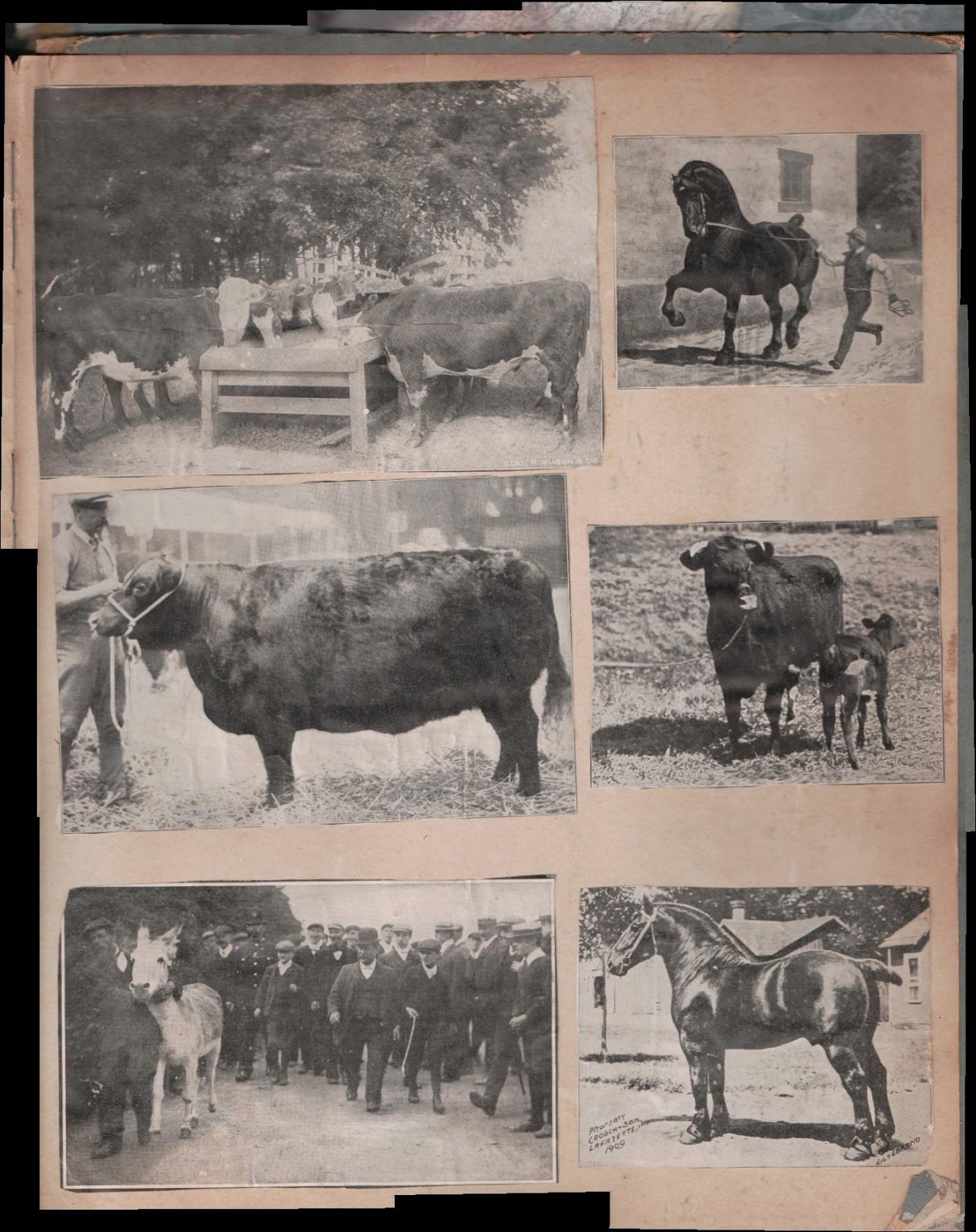
I went straight for my grandfather's childhood scrapbook of magazine photos of horses, cows and pigs. It's about 12" x 14" - maybe even larger. But it's too big to get a full page on my flatbed scanner. It took me a couple tries to get the auto-stitching software to work, but that was my own fault since I seldom read an instruction manual unless absolutely necessary. Since the software was not recognizing any stitchable regions, I realized that my scans had to overlap with one another. I made 11 scans of the page and here are four of them, just to demonstrate what the individual scanned images look like. Image size is reduced for the blog post.

Funny caption, anyone?


The Flip-Pal software is loaded on the 2GB SD memory card that comes installed on the scanner.


I clicked on the menu item "Stitch Scans", selected the scanned images to sew together and in only a few seconds, I had the following image on my computer screen:


I've left this image at its original size so you can click on it to see the full-size Hi-Res scan. I'll challenge anyone to find each individual scanned image. It absolutely matches perfectly. I even avoided cropping this image so you could seen the overage on the sides where I did the scanning. Well, what can I say? This is one of the two main reasons that I wanted to get this scanner.

Part 2 of this review will focus more on the technical aspects of the product and reason number 2 for my purchase - portability.

The Flip-Pal website

Part 2 of this review

Disclaimer: I purchased this product directly from the Flip-Pal web site. No compensation of any kind was received for this review.

Tuesday, October 19, 2010

Tuesday's Tip: Making Music part of your family history

Everyone loves music. So did our ancestors.

While putting your family's story into historical context, consider taking a look at the music that was popular during their lives. Top 40 or the Hit Parade - whatever it may have been in their time - can help bring the stories about your ancestors to life.

An excellent resource to look into musical heritage is the New York Public Library's digital archives. A fun place to start is with the sheet music covers of American popular song from 1890-1922. You can browse the collection by year or do a search of the collection.

My fellow fans of Dancing With the Stars might enjoy seeing the sheet music for the Argentine Tango (1912). Another selection from 1912 was It's a Long Long Way to Tipperary. World War II brings us songs such as Those Draft-in Blues. With the war over, the Roaring Twenties include such hits as Ain't We Got Fun.

All categories of digital images about music in this archive are listed here.

Music has always been a big part of my life. Anytime I hear songs from the 1960s, I usually always associate the song with what was happening in my life at the time. The same thing was probably true of our ancestors.

Just for fun, a related book: On This Day in Music History: Over 2,000 Popular Music Facts Covering Every Day of the Year (Book)

Sunday, October 17, 2010

Nebraska State Government Resources for Genealogists

Today's Tip will focus on genealogy resources available on the State of Nebraska's official government web sites. While many of the government pages merely provide links to other online resources, there are a few gems to be found along the way. If your genealogy has any Nebraska ties, I hope you'll find a couple resources you may not have seen before.

A couple years ago, the State of Nebraska revamped its online presence to this dynamic Nebraska.gov site that was intended to serve as a portal to all state government services in one location. Personally, I find it cumbersome and much too difficult to find what I'm looking for most of the time. If I need to find something quickly, I've learned to go to Google to search within this site. To save you some time and frustration, here are some of the pages of interest to genealogists doing research in Nebraska.

A starting point is a list of links of Genealogy resources:

http://nebraskaccess.ne.gov/genealogy.asp - the links are the usual fare for genealogy researchers and most are general information, not specific to Nebraska (Ancestry, Cyndi's List, FindAGrave . . .)

The State of Nebraska offers free access to Heritage Quest if you are a resident of the state. Your Nebraska driver's license number will get you into this database. Access to eLibrary is also available with a password you can obtain through your Nebraska public library.

Privacy issues have limited access to some records for genealogists. The basic procedures for obtaining records is on the Health and Human Services web site. The state rules and regulations for release of records for genealogical purposes is in Chapter 3 of Nebraska Administrative Code 174. You have better access to records if you are a certified historian or a an enrolled student of history working on a specific project or an employed member of the news media.

Information about where to obtain birth, marriage, death and divorce certificates is on this page, although it is primarily a list of links to external sites.

The State Library Commission hosts a blog which announces different libraries in Nebraska as each attains an online presence. You can subscribe to this blog in your RSS reader to receive updates. Here are a couple examples of the libraries on the site:

This page has links to libraries in Nebraska, links to their social networking sites, and indicates if they have WiFi access or a catalog online. This is a good starting point for your local research.

Nebraska Memories is another government web site operated by the Nebraska Library Commission. Subtitled "Making Nebraska's Past Unforgettable" you can browse or search a variety of digital images on such categories as portraits, sports, music scores, animals, maps, government, education, business, disasters and more. I can easily get lost on this site for quite a while.

If your research leads to a famous Nebraskan, there are several links on this page. I have to toot my own horn a little bit since the page links to my NebraskaOnFilm.com web site (another of my passions in addition to genealogy).


The Nebraska State Historical Society provides a wealth of information and resources online. Since I've already written a blog post about their resources, I'll direct you to that post rather than repeat it here. But here is a link to the Society's page about doing genealogy research.

If you are researching property in Nebraska, here's a nice 60 page guidebook with a lot of great tips. A link in this book took me to an interesting map labeled "Ghost Towns of Cass County" as well as a 1908 map of Lancaster county. Even if you don't have a Nebraska connection, this publication also serves as a good resource on land and property research. This publication may just be the best "Easter egg" that I discovered while surfing sites to include in this post. It's a pdf file that you can download.

You can search court cases, but you need to get a User ID and password. Presently, the fee is $15 per search.

The Secretary of State's office has some information that may be of value to researchers, although this information may be more recent in nature. One of the databases is on registered voters, which I've used a time or two.

The Unclaimed Property division of the State Treasurer's department might yield results on missing relatives. This is a searchable database of money sitting around in bank accounts or safe deposit boxes. Whoa, Nellie! I just found a listing for less than $300 for one of my Dad's aunts who died in 1982. I told you that you might find something here!

I hope these links provide Nebraska researchers with a few resources they may not have seen before. If you come across other gems or links on any State of Nebraska government web site, please share them in the comments section below.

Saturday, October 2, 2010

Sorting Saturday - Managing Your Genealogy Digital Files

I will admit this right up front: I do not do well with paper. I print off pages from the Internet, have scraps of notes laying around, notebooks with information from seminars, brochures - you name it. These scraps of paper seldom get filed.

On the other hand, I'm more of a fanatic when it comes to organizing my digital files. Why? Because by doing so, I have dramatically increased the likelihood of finding the piece of information that I am looking for. And finding it faster.

My digital file tool box includes the following:

  • 75 gb external USB drive dedicated solely to genealogy files (yes, I keep it backed up)
  • Flatbed scanner - I scan everything at 600 dpi as I don't know what files I may want to publish in print format. I always make a smaller, web friendly version of the same file and add "sm" (for small) onto the filename.
  • Microsoft OneNote software - this handy dandy tool comes packaged with Microsoft Office Home and Student or as a standalone product
  • The Adobe pdf plug-in for Microsoft Word - if you don't have this, you need to get it. Download here.
  • My digital camera
Microsoft OneNote 2010 is a lifesaver for someone like me who "doesn't do paper." When I find a web site that references someone I am researching, rather than print a paper copy, I select "Print to OneNote" and it saves a digital version of the page for me. Then, in the OneNote software, I select the option for all text in an image to be converted to searchable text. I enter a subject/topic identifier so I can easily see the files I have saved. I can then move all of my "unfiled notes" into folders of my choosing (surnames, locations, etc.).

OneNote also has a fantastic Screen Clipping feature which I used for the graphics in this post. Each individual clipping can then be saved as a png file which you can edit in your favorite photo editing software.

The Adobe pdf plug-in for Microsoft Office is a must-have if you want to convert a Word file to an Adobe pdf file. As an example, I may create a book about one line of the family, import photos into word, write my text, insert images of census records, etc. When my book is complete, I can "Save as PDF" and, in seconds, I have a PDF file that retains all of my layout and formatting, text is searchable and I can share on my web site, blog or Google docs. Yes, you can create your own PDF file without having to purchase a PDF creation product such as Adobe Professional. Oh yes, the plug-in for Word is Free.

Organizing Digital Files

I read an article in Family Tree Magazine a while back that offered some tips about organizing digital files. I took their basic premise and adapted it to meet my needs. Here's what the root directory on my 75gb drive looks like:


As you can see, I have created general topics for surnames, cemeteries, reference books, location research, etc. For the folders that I use the most, I've added a letter of the alphabet to aid in locating the folder. For example, "A - Surnames."


Here is my surname folder. This is where it can get a little complicated. Within each surname file, there might be in-law files. For example, for Nellie Kelly, her records remain in the folder with her parents, William Kelly and Mary Casey until the time of her marriage to Ode E. Rector. Then I begin a Rector surname folder. I have a tendency to keep the in-laws sub-folders with the primary surname that I am researching until the information on that family expands to the point where it requires its own folder.


That part of my filing system may not work for everyone, especially as your tree expands and you can't remember who married who. If that's the case, once you have a new surname (equivalent to the paper Family Group Sheet), just move that folder to the main directory for your surnames, so all of your surnames are listed in one location.


In my Bellinger folder, I have folders for individuals, and once they are married with children of their own, I may create a folder with the names of both husband and wife, as I did with Daniel Floyd Bellinger and his wife, Gladys, in the image above. As I add information to their family, I move them up one level.

In theory, I use this same sorting/filing system for my paper files - it's just that the paper files do not get updated as often as I do my digital files.

My individual and surname folders may include images such as census records, scans of newspaper articles and photographs and any other digital record I have on the person or family.


I use a similar system for my location research. The files shown above are the Nebraska counties that I research. The county histories and other historical documents that I am able to download from sites like Google books go in these folders.


Articles that I come across are also saved to topic folders. These, too, can be created to meet the needs of your own research.

I am eagerly awaiting my Flip-Pal digital scanner (they are supposed to ship this month!), so I can begin scanning the items that are too large for my flatbed scanner - scrapbooks, posters, oversized photographs, etc. Those items are so large, they won't file in a paper file folder, so it will be nice to archive those and have the digital version available on my computer.

Do you have a tip to share on organizing digital files? If so, please leave a comment below.